Unreal Cheatsheet 9 - Physics and Collision
Master Unreal Engine physics systems with essential functions, collision detection, and real-world implementation strategies for professional game development.
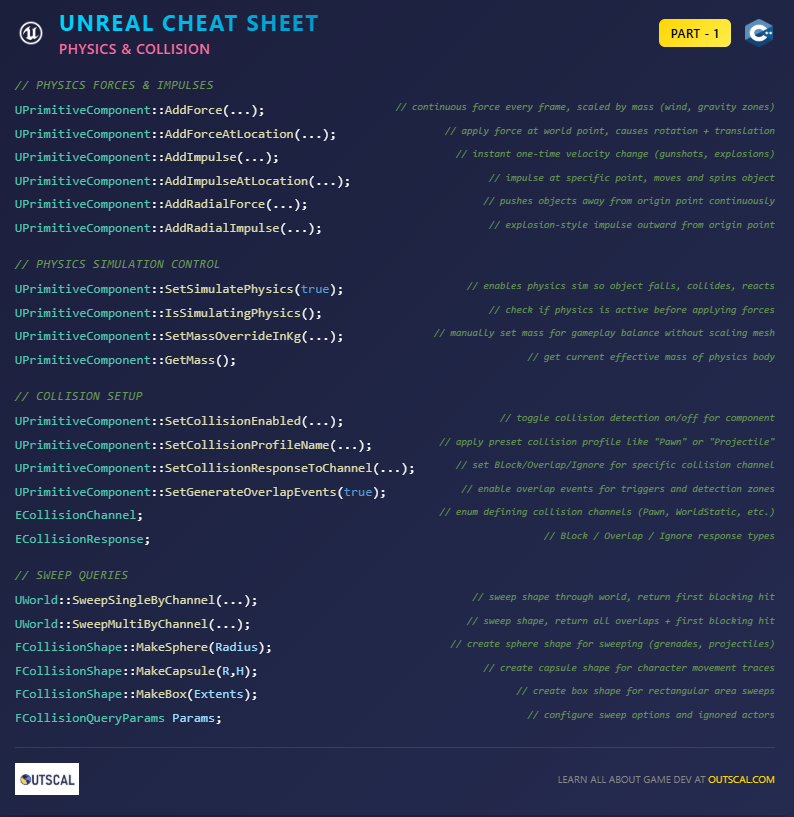
Table of Contents
- Here's the Thing About Physics (And Why I Nearly Quit Game Dev Over It)
- What Unreal Physics Actually Does (Beyond Making Things Fall Down)
- The Functions That Actually Matter (After Years of Trial and Error)
- Forces vs Impulses: Took Me Months to Figure This Out
- When Physics Gets Interesting: Location-Based Magic
- Actually, Wait - Let's Talk Simulation Control
- Collision Systems That Don't Make You Want to Scream
- Sweep Queries: The Tool I Wish I'd Known at KIXEYE
- Physics Constraints: Where the Real Fun Begins
- Let Me Show You How I Approach This (Step-by-Step Implementation)
Here's the Thing About Physics (And Why I Nearly Quit Game Dev Over It)
You know what's funny? Back when I was making the transition from D.E. Shaw to game development, I thought unreal physics would be the easy part. I mean, how hard could it be to make a ball bounce, right?
Turns out, pretty hard.
I remember my first week at KIXEYE - I was working on this mobile strategy game, and we had these catapult mechanics that were supposed to feel satisfying and predictable. Instead, they felt like they were powered by angry ghosts. Sometimes projectiles would fly perfectly, other times they'd barely leave the launcher, and occasionally they'd just... disappear into the void.
This one time, I spent three sleepless nights trying to fix what I thought was a simple stacking mechanic for a physics puzzle. My blocks would phase through each other like ghosts, create impossible tower configurations that defied gravity, or randomly explode when players breathed on them wrong. I remember thinking, "Maybe I should go back to quantitative analysis - at least numbers behave predictably."
But here's what I learned the hard way: mastering Unreal Engine's physics isn't about memorizing a bunch of functions. Been there, tried that. It's about understanding why virtual objects behave the way they do, and more importantly, how to make them behave the way your players expect. After spending over a decade in game development (and probably a solid year just debugging physics interactions), the difference between amateur and professional physics implementation comes down to understanding a handful of core principles.
What Unreal Physics Actually Does (Beyond Making Things Fall Down)
Here's the thing most people don't realize about physics simulation unreal - it's not just about gravity and bouncing balls. When I first started at CMU, I thought physics engines were basically fancy calculators that made objects fall down. I was so wrong it's embarrassing.
Unreal engine physics is built on the Chaos Physics system, and it's handling way more than you think. Every time a character walks across uneven ground, every collision between objects, every rope that swings or door that creaks - that's all physics simulation working behind the scenes. It's calculating forces, managing collisions, simulating joints, and making thousands of tiny decisions about how objects should interact.
Think about games you actually play. In Rocket League, the ball doesn't just bounce - it spins, curves through the air, and responds to exactly where and how hard you hit it. In Half-Life 2, those physics puzzles work because objects behave predictably - stack crates to reach a ledge, use a crowbar to pry open a door, balance weight on a seesaw. In mobile games like the ones we built at KIXEYE, projectiles need to arc naturally while still feeling responsive to touch controls.
Here's why you should care about this: unreal collision system mastery isn't optional for serious game developers. Whether you're building a platformer, a physics puzzle game, or even a story-driven adventure, understanding these systems will elevate your work from amateur to professional quality. When players interact with your world, they're not just pressing buttons - they're testing whether your virtual reality feels believable.
The Functions That Actually Matter (After Years of Trial and Error)
Been there - staring at Unreal's documentation wondering which of the hundreds of physics functions you actually need to know. Let me save you some time. After working on everything from mobile strategy games to complex physics puzzlers, here are the functions that show up in virtually every project I build:
// PHYSICS FORCES & IMPULSES
UPrimitiveComponent::AddForce(...);              // continuous force (mass-scaled)
UPrimitiveComponent::AddForceAtLocation(...);    // force at a world location
UPrimitiveComponent::AddImpulse(...);            // instant velocity change
UPrimitiveComponent::AddImpulseAtLocation(...);  // impulse at a point
UPrimitiveComponent::AddTorqueInRadians(...);    // rotational torque
UPrimitiveComponent::AddRadialForce(...);        // outward force from origin
UPrimitiveComponent::AddRadialImpulse(...);      // explosion-style impulse
These seven functions are your bread and butter. I remember when I first saw this list thinking, "That's it? That's what I've been struggling with?" But here's the thing - understanding when to use each one is what separates the pros from the people pulling all-nighters debugging why their crates are flying to Mars.
The control functions are equally critical:
// PHYSICS SIMULATION CONTROL
UPrimitiveComponent::SetSimulatePhysics(true);   // enable physics sim
UPrimitiveComponent::IsSimulatingPhysics();      // check sim state
UPrimitiveComponent::SetMassOverrideInKg(...);   // override component mass
UPrimitiveComponent::GetMass();                  // effective body mass
UPrimitiveComponent::WakeAllRigidBodies();       // wake sleeping bodies
UPrimitiveComponent::PutAllRigidBodiesToSleep(); // force sleep
And your collision toolkit:
// COLLISION SETUP
UPrimitiveComponent::SetCollisionEnabled(...);   // enable/disable collision
UPrimitiveComponent::SetCollisionProfileName(...);// apply preset profile
UPrimitiveComponent::SetCollisionResponseToChannel(...);// per-channel rule
UPrimitiveComponent::SetGenerateOverlapEvents(true);// overlap events on/off
ECollisionChannel;                               // enum of channels
ECollisionResponse;                              // Block / Overlap / Ignore
Took me months to figure out that most of my "mysterious" physics bugs were actually just objects falling asleep when I didn't expect them to, or collision channels fighting with each other. Now I always, always check simulation states and collision setups before applying forces. Trust me on this one.
I've seen this technique used brilliantly in our mobile strategy game at KIXEYE. We had catapults that needed to feel powerful but predictable for touch controls. Here's how we solved it:
• Used
AddImpulse() for the initial projectile launch (instant, dramatic)• Combined with
AddRadialImpulse() for impact effects (satisfying area damage)• Applied
AddForceAtLocation() on hit targets to create realistic tumblingWhat I find fascinating about this approach is how layering different force types created emergent gameplay - players started aiming for structural weak points not because we programmed it, but because the physics made it feel natural.
Forces vs Impulses: Took Me Months to Figure This Out
Here's where I made my biggest rookie mistake. I thought AddForce and AddImpulse were basically the same thing - just different ways to push objects around. Spent way too much time wondering why my explosion effects felt like gentle breezes and my wind zones launched objects into orbit.
Let me break this down the way I wish someone had explained it to me:
AddForce unreal functions are like having someone continuously push on something. Think of it as applying pressure over time. When I was working on environmental effects at KIXEYE - things like wind zones or magnetic fields - AddForce was perfect because these effects should feel persistent and gradual.
AddForce() applies a push every frame, scaled by mass (like wind or gravity zones). The key insight here is that AddForce is mass-scaled. Heavier objects need more force to move at the same speed as lighter objects. Just like in real life - you need more effort to push a refrigerator than a beach ball.
AddImpulse, on the other hand, is like giving something a sudden kick. It bypasses mass scaling and directly changes velocity. This one time at KIXEYE, we had this catapult mechanism that needed to feel punchy and immediate. AddImpulse was exactly what we needed.
AddImpulse() is a one-off velocity change, perfect for gunshots or explosions. It directly modifies velocity regardless of mass, giving you immediate, predictable results.
Here's how I think about it now:
- Use AddForce for: Wind effects, conveyor belts, magnetic fields, rocket thrusters - anything that should feel like continuous pressure
- Use AddImpulse for: Explosions, weapon impacts, character jumps, ball kicks - anything that should feel instant and dramatic
Actually, wait - there's one more thing that confused me for ages. The difference between these approaches becomes really obvious when you're tuning gameplay. With AddForce, you're adjusting how much pressure to apply. With AddImpulse, you're directly controlling the result. Once I understood that distinction, physics tuning became so much easier.
When Physics Gets Interesting: Location-Based Magic
You know what's funny? I spent months using the basic AddForce and AddImpulse functions before I discovered their location-based variants. This was during one of those late-night coding sessions where I was trying to make a crate respond realistically when hit by a projectile.
The problem was, no matter where I hit the crate, it would always move in the same predictable way. Hit it dead center? Moves forward. Hit it on the corner? Still just moves forward. It felt mechanical and lifeless.
Then I discovered the location-based variants, and everything changed:
AddForceAtLocation() and AddImpulseAtLocation() apply force/impulse at a world-space point - this not only moves but also spins objects (e.g., hit a crate in the corner).
UPrimitiveComponent::AddForceAtLocation(...);    // force at a world location
UPrimitiveComponent::AddImpulseAtLocation(...);  // impulse at a point
These functions apply forces at specific world-space coordinates, which creates both linear motion AND rotation. Hit that crate in the corner now? It spins as it flies, just like in real life. This one change made our physics interactions feel 10 times more believable.
For pure rotational effects, there's AddTorqueInRadians():
UPrimitiveComponent::AddTorqueInRadians(...); // rotational torqueThis rotates objects around an axis, great for spinning wheels or knocked barrels. I use this for spinning wheels, rotating platforms, or any object that needs to rotate around an axis without changing its linear motion. Been there - trying to make a wheel spin by applying forces at weird angles. Using AddTorqueInRadians directly is so much cleaner.
The radial functions are where things get really spectacular:
UPrimitiveComponent::AddRadialForce(...);        // outward force from origin
UPrimitiveComponent::AddRadialImpulse(...);      // explosion-style impulse
AddRadialForce() and AddRadialImpulse() push things outward from a point - continuous (force) or instant (impulse). Classic for grenades and shockwaves.
Actually, Wait - Let's Talk Simulation Control
Here's something I wish I'd understood from day one: knowing how to apply forces is only half the battle. The other half is controlling when and how physics simulation unreal runs in the first place.
SetSimulatePhysics() and IsSimulatingPhysics() are your fundamental control tools:
UPrimitiveComponent::SetSimulatePhysics(true);   // enable physics sim
UPrimitiveComponent::IsSimulatingPhysics();      // check sim state
SetSimulatePhysics turns on physics for a mesh (so it falls, collides, reacts). Use IsSimulatingPhysics to check before applying forces. The timing of when you flip that switch can make or break your gameplay. I learned this the hard way when objects would start drifting or settling unexpectedly during level loading.
Here's the thing - always, always check IsSimulatingPhysics before applying forces. I've debugged so many null reference errors that could have been prevented with this simple check.
Mass management gives you incredible control over gameplay feel:
UPrimitiveComponent::SetMassOverrideInKg(...);   // override component mass
UPrimitiveComponent::GetMass();                  // effective body mass
SetMassOverrideInKg() and GetMass() let you manually set or query mass. Useful for balancing gameplay (a "heavy" object feels heavier without scaling mesh). I use this constantly for gameplay balancing. Want a small key to break through weak floors? Give it the mass of a bowling ball. Need players to easily move large decorative objects? Make them lighter than they look.
Collision Systems That Don't Make You Want to Scream
Been there - staring at Unreal's collision system thinking it was designed by committee of sadists. The unreal collision system can be overwhelming at first, but once you understand the core concepts, it's actually pretty elegant.
Your essential collision control functions:
// COLLISION SETUP
UPrimitiveComponent::SetCollisionEnabled(...);   // enable/disable collision
UPrimitiveComponent::SetCollisionProfileName(...);// apply preset profile
UPrimitiveComponent::SetCollisionResponseToChannel(...);// per-channel rule
UPrimitiveComponent::SetGenerateOverlapEvents(true);// overlap events on/off
ECollisionChannel;                               // enum of channels
ECollisionResponse;                              // Block / Overlap / Ignore
The collision response enums (ECollisionChannel and ECollisionResponse) provide the building blocks:
- Block: Physical collision, objects can't pass through
- Overlap: Detection without blocking, perfect for triggers
- Ignore: No interaction whatsoever, useful for decorative elements
Sweep Queries: The Tool I Wish I'd Known at KIXEYE
This one time at KIXEYE, we were working on a tactical combat system where players could preview weapon ranges and attack areas. I spent weeks trying to build this using basic collision detection, creating invisible trigger volumes and managing complex state tracking.
Then someone showed me sweep queries, and I realized I'd been doing everything the hard way.
Your sweep query toolkit:
// SWEEP QUERIES
UWorld::SweepSingleByChannel(...);               // sweep shape, first block
UWorld::SweepMultiByChannel(...);                // sweep shape, overlaps + block
FCollisionShape::MakeSphere(Radius);             // sphere sweep shape
FCollisionShape::MakeCapsule(R,H);               // capsule sweep shape
FCollisionShape::MakeBox(Extents);               // box sweep shape
FCollisionQueryParams Params;                    // per-query flags
Params.AddIgnoredActor(this);                    // ignore specific actors
Sweeps slide shapes (sphere, capsule, box) through the world to detect hits along paths - useful for melee weapons, ledge finds, or AI detection. SweepSingleByChannel() finds the first blocking obstacle, while SweepMultiByChannel() tells you about everything encountered.
Physics Constraints: Where the Real Fun Begins
Actually, wait - let me tell you about the first time I discovered physics constraints. I was trying to build a simple door system, thinking I'd just animate it opening and closing. But the design team wanted doors that could be pushed, pulled, and would swing naturally based on physics forces.
Then I found physics constraints, and everything clicked:
// PHYSICS CONSTRAINTS
UPhysicsConstraintComponent;                     // constraint component
SetConstrainedComponents(A,B,...);               // bind two bodies
SetLinearLimits(...);                            // linear axis limits
SetAngularSwing1Limit(...);                      // swing limit
SetAngularTwistLimit(...);                       // twist limit
SetDisableCollision(true);                       // disable collision between them
Physics constraints are used to build joints like hinges, sliders, or ragdoll limbs. Configure linear/angular limits, twist, swing, and optionally disable collision between connected parts.
Let Me Show You How I Approach This (Step-by-Step Implementation)
Alright, let's tackle this together. When I'm setting up a physics system unreal from scratch, I follow the same process every time. Here's the exact method I use when starting any new project - whether it's a 2D platformer or a complex 3D simulation.
Step 1: Start with Basic Force Application
First, I create a simple test scene. Here's my go-to setup for understanding how forces work in your specific project:
// My standard test setup - I use this every single time
if (GetWorld() && MyPrimitiveComponent && MyPrimitiveComponent->IsSimulatingPhysics())
{
    // Test basic impulse - instant kick
    MyPrimitiveComponent->AddImpulse(FVector(1000.0f, 0.0f, 0.0f));

    // Test continuous force - persistent push
    MyPrimitiveComponent->AddForce(FVector(500.0f, 0.0f, 0.0f));
}
Step 2: Configure Mass and Simulation Settings
// My tried-and-tested configuration approach
MyPrimitiveComponent->SetSimulatePhysics(true);
MyPrimitiveComponent->SetMassOverrideInKg(50.0f); // Adjust based on gameplay needs
MyPrimitiveComponent->SetGenerateOverlapEvents(true);
Step 3: Set Up Collision Profiles
// I always start with these collision profiles
MyPrimitiveComponent->SetCollisionEnabled(ECollisionEnabled::QueryAndPhysics);
MyPrimitiveComponent->SetCollisionProfileName("PhysicsActor");

// Then customize per-channel responses as needed
MyPrimitiveComponent->SetCollisionResponseToChannel(
    ECollisionChannel::ECC_Pawn,
    ECollisionResponse::ECR_Block
);
Step 4: Implement Location-Based Forces
// Location-based impact system - my standard approach
FVector ImpactLocation = HitResult.Location;
float ImpactForce = 2000.0f;

if (HitActor && HitActor->GetRootComponent())
{
    UPrimitiveComponent* HitPrimitive = Cast(HitActor->GetRootComponent());
    if (HitPrimitive && HitPrimitive->IsSimulatingPhysics())
    {
        HitPrimitive->AddImpulseAtLocation(ImpactDirection * ImpactForce, ImpactLocation);
    }
} Common Questions
Here's how I think about it - AddForce is like having someone continuously push on something, perfect for environmental effects that should feel persistent. AddImpulse is like giving something a sudden kick, ideal for dramatic one-off events. AddForce scales with mass (heavier objects need more force), while AddImpulse directly changes velocity regardless of mass.
They're probably falling asleep! Physics objects automatically sleep when motionless to save performance, but sleeping objects won't respond to new forces. Use WakeAllRigidBodies() to ensure they stay active, and always check IsSimulatingPhysics() before applying forces.
Any time you need to know what happens along a path, not just at a point. I use sweeps for weapon swing detection, AI line of sight, ledge detection, and projectile prediction. If you're asking "what's between point A and point B," sweeps are usually the answer.
Use collision channels and responses. Set up different channels for different object types (Player, Enemy, Environment, etc.) and configure whether each should Block, Overlap, or Ignore others. Start with collision profiles like "Pawn" or "WorldDynamic" as templates, then customize with SetCollisionResponseToChannel.
SetMassOverrideInKg is your friend. This lets you manually adjust mass independently of visual size. I use this constantly for gameplay balancing - small keys that break floors, large decorations that are easy to move, etc.
Usually it's because you forgot SetDisableCollision(true) between constrained objects, or you're trying to constrain objects that aren't simulating physics. Always ensure both objects have physics enabled before creating constraints, and disable collision between them to prevent fighting.
Layer your effects! Start with AddRadialImpulse for the initial blast, add AddRadialForce for lingering pressure, and throw in some AddTorqueInRadians on debris for spinning motion. The combination creates much more dynamic and visually interesting results.
Use AddForceAtLocation() or AddImpulseAtLocation() with world-space coordinates. These create both linear motion and realistic rotation based on where the impact occurs. Hit a crate in the corner and it'll spin as it flies, just like real life.
Manage sleep cycles appropriately, use simplified collision shapes where possible, and consider kinematic objects for decorative elements that don't need full simulation. Group related objects and enable physics only when players interact with them. Most performance issues come from simulating objects that don't actually need physics.